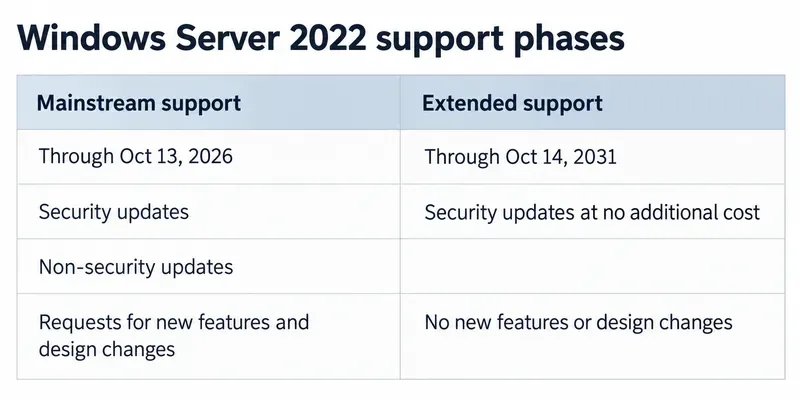
As of September 2026, Microsoft’s official Windows release-health and download pages list Windows 11 as the current client Windows family; they do not list an official Windows 12 release. Microsoft currently identifies Windows 11 version 25H2 as the current downloadable release, while version 26H1 is available on select new devices built for newer hardware. That matters because there is no verified “Windows 12 cloud-integrated File Explorer” interface to troubleshoot yet.
This guide therefore uses only fixes Microsoft documents for supported Windows 11 systems with cloud integration such as OneDrive Files On-Demand and synced SharePoint libraries. If you are using a device, preview build, skin, concept image, or third-party product labeled “Windows 12,” do not assume its menus match Microsoft documentation. Start by confirming what Windows version is actually installed.
You can verify the current Windows release family on Microsoft’s Windows 11 release information page and official Windows 11 download page.
Before you start: identify what “lag” actually means
File Explorer lag can describe several different symptoms. Separating them makes troubleshooting much faster.
- Explorer opens slowly everywhere: the problem may be Windows, storage pressure, or another local process rather than cloud sync.
- Only OneDrive or synced SharePoint folders are slow: the sync client, file volume, network connection, or online-only files are more likely to be involved.
- Search is slow but normal folder browsing is fine: Windows Search indexing deserves attention.
- Explorer becomes slow only while OneDrive says “Syncing” or “Processing changes”: test the sync workload before changing Windows settings.
“Files On-Demand” means OneDrive can show cloud files inside File Explorer without storing every file locally. A blue cloud icon means a file is online-only. A green check indicates a locally available file, while a solid green circle with a white check means the item is set to stay on the device. Microsoft explains these states in its Files On-Demand documentation.
Prepare: save open work, note whether the lag happens in local folders or cloud folders, and make sure you know whether you use a personal OneDrive account, a work or school OneDrive account, or synced SharePoint libraries.
Step 1: confirm Windows is current, then restart
Start with the least disruptive fix. Microsoft’s File Explorer troubleshooting guidance tells Windows 11 users to check for updates and restart the device.
- Open Start → Settings → Windows Update.
- Select Check for updates.
- Install available updates.
- Restart the PC, even if Windows does not explicitly require it.
Microsoft notes that restarting can complete pending updates. See Microsoft’s File Explorer troubleshooting page.
What to check next: open a purely local folder such as a folder under This PC, then open the OneDrive folder. If both are fast after the restart, stop here. If only the cloud-backed location remains slow, continue to Step 2.
Step 2: pause OneDrive to test whether cloud sync is the trigger
Do not immediately reset or uninstall OneDrive. First perform a reversible test.
- Select or right-click the OneDrive cloud icon in the taskbar notification area.
- Choose Pause syncing.
- Select 2, 8, or 24 hours.
- Open File Explorer and browse the same folders that were lagging.
Microsoft specifically recommends pausing and resuming sync when OneDrive is stuck processing changes or when syncing is slowing down the computer or connection. See How to pause and resume OneDrive sync.
If File Explorer becomes responsive while sync is paused
The result strongly suggests the cloud workload is contributing to the lag. Resume OneDrive and move to Step 3 to reduce the load instead of leaving sync paused indefinitely.
If File Explorer is still slow while sync is paused
The cloud client is less likely to be the main cause. Skip to Step 4 and investigate Windows storage, search indexing, and system files.
Beginner tip: pausing sync does not delete your files. It only stops synchronization temporarily.
Step 3: reduce the cloud-file workload instead of disabling cloud integration
If OneDrive is the trigger, the goal is not necessarily to remove it. The safer goal is to sync fewer items locally and avoid unnecessary downloads.
Use Files On-Demand deliberately
Microsoft says OneDrive Files On-Demand is enabled by default in current OneDrive builds and lets cloud files remain visible without consuming local storage until needed.
- Right-click a OneDrive file or folder and choose Free up space to make locally cached content online-only.
- Choose Always keep on this device only for files or folders that genuinely need offline access.
Do not use Delete as a substitute for Free up space. Microsoft states that deleting an online-only file deletes it from OneDrive on other devices and online as well. Free up space keeps the cloud file while removing the local copy.
Reduce the number of synced items
Microsoft’s current OneDrive and SharePoint limitations page recommends syncing no more than a total of 300,000 cloud-storage items for optimum performance. It also warns that performance issues can occur above that level, even if every item is not actively syncing. A higher 1,000,000-item sync capability is in public preview under specific hardware and client requirements, so it should not be treated as the normal baseline.
To estimate your OneDrive item count:
- Open File Explorer.
- Right-click your OneDrive folder.
- Select Properties.
- Check the Contains count.
If the count is very high, reduce unnecessary synced folders, remove unneeded shortcut folders, or stop syncing SharePoint libraries you no longer use. Microsoft documents the 300,000-item guidance on its OneDrive and SharePoint restrictions and limitations page.
Check free disk space
Cloud integration can still need local working space. Microsoft notes that low disk space can hurt overall PC performance. Open File Explorer, select This PC, and inspect the free space on the system drive.
For cleanup, go to Settings → System → Storage. Storage Sense and Cleanup recommendations can remove temporary files and can manage locally available cloud content without deleting the cloud copy when configured correctly. See Microsoft’s Storage Sense documentation.
Checkpoint: resume OneDrive and retest File Explorer. If the lag is gone or clearly reduced, keep the lighter sync configuration. If the problem remains even in local folders, continue.
Step 4: fix local Windows causes if cloud sync is not enough
Check Windows Search indexing
“Indexing” is Windows creating a local catalog of filenames, properties, and sometimes file contents so searches return faster. File Explorer uses this index. Microsoft says the initial indexing process can take up to a couple of hours, and that the Enhanced indexing mode searches the entire PC but can use more system resources than Classic.
Open Settings → Privacy & security → Search. Under Find my files:
- Use Classic if you mainly search Desktop, Documents, Pictures, and Music and want a lighter resource footprint.
- Use Enhanced only when you need whole-PC search and accept the additional indexing work.
- If you have very large code, build-output, archive, or generated-file folders that do not need to be searched, use Customize search locations with Classic mode to exclude unnecessary locations.
Microsoft documents the two modes and their resource tradeoff in Search indexing in Windows.
Repair Windows system files with DISM and SFC
If File Explorer is slow or unstable even with cloud syncing paused, corrupted Windows components are another possibility. Microsoft recommends running Deployment Image Servicing and Management (DISM) before System File Checker (SFC).
- Search for Command Prompt.
- Right-click it and choose Run as administrator.
- Run
DISM.exe /Online /Cleanup-image /Restorehealth.
- Wait for it to finish.
- Then run
sfc /scannow.
- Do not close the window until SFC reaches 100 percent.
These commands and their order are documented by Microsoft in Use the System File Checker tool to repair missing or corrupted system files.
Reset OneDrive only if sync remains broken
If the problem is clearly tied to OneDrive and the earlier sync adjustments did not help, resetting OneDrive can repair sync-client state. Microsoft warns that a reset causes OneDrive to perform a full sync again, so it is not a good first step on an account with a very large file set.
Microsoft’s current Windows reset command is:
%localappdata%\Microsoft\OneDrive\onedrive.exe /reset
If Windows cannot find that path, Microsoft also documents Program Files alternatives. Follow the official instructions on Reset OneDrive rather than copying commands from an unverified forum post.
How to tell which fix worked
| Test result | Most likely direction | What to do |
|---|
| Explorer speeds up when OneDrive is paused | Sync load is contributing | Use Files On-Demand, reduce synced folders, check item count, then resume sync. |
| Only Search is slow | Indexing is more likely | Review Classic vs. Enhanced indexing and unnecessary indexed locations. |
| Both local and cloud folders are slow | Broader Windows or storage issue | Update, restart, check free space, then run DISM and SFC. |
| Lag started during a huge sync or migration | OneDrive may still be processing changes | Allow the sync to finish or temporarily pause it; avoid adding another large batch at the same time. |
| Sync stays broken after simpler fixes | OneDrive client state may be damaged | Use Microsoft’s documented OneDrive reset procedure. |
Common mistakes to avoid
- Do not download a “Windows 12 fix” utility from an unofficial site. Microsoft’s current public release pages still identify Windows 11, so there is no verified Windows 12 repair package to install.
- Do not delete OneDrive files just to free local disk space. Use Free up space when you want the file to remain in the cloud.
- Do not mark the entire cloud library “Always keep on this device” unless you need it offline. That can consume large amounts of storage and trigger extensive downloads.
- Do not reset OneDrive before testing Pause syncing. Resetting initiates a full synchronization afterward.
- Do not assume every Explorer delay is a cloud problem. If This PC and ordinary local folders are also slow, continue with Windows storage, indexing, and system-file checks.
- Do not run SFC first when following Microsoft’s current repair sequence. Microsoft recommends DISM first, then SFC.
When to involve your IT administrator
On work-managed PCs, OneDrive bandwidth, sync scope, Files On-Demand, SharePoint libraries, antivirus, and Windows Update settings may be controlled by policy. If an option described above is missing or locked, do not work around corporate policy. Contact your IT help desk.
If you are actually using Windows 365 Cloud PC rather than a local Windows PC with OneDrive, the lag can also involve the remote session, network path, or Cloud PC resources. This guide still helps separate File Explorer and OneDrive behavior, but Cloud PC performance should be diagnosed with your organization’s Windows 365 administration tools.
Bottom line
There is no official Microsoft Windows 12 File Explorer interface to troubleshoot as of September 2026, so the safest solution is to avoid invented “Windows 12” instructions and use the supported Windows 11 workflow. Update and restart first, pause OneDrive to isolate the cloud layer, reduce unnecessary synced content with Files On-Demand, then check indexing, storage, and Windows system files if the lag remains.
For most cloud-related cases, the most useful diagnostic is simple: pause OneDrive and compare File Explorer performance in the same folders. That one test tells you whether to spend your time tuning sync or troubleshooting Windows itself.