Home
» Software
»
Windows 11 24H2 Updates End October 13 for Home and Pro: Check Your Edition and Choose a Next Step
Windows 11 24H2 Updates End October 13 for Home and Pro: Check Your Edition and Choose a Next Step
Windows 11 version 24H2 reaches the end of updates for Home and Pro on October 13, 2026, according to Microsoft’s Windows 11 24H2 release-health notice. The practical question is whether your own PC is running that version and one of the affected editions. “Windows 11” alone is not enough information: the edition identifies the product you have, while the version identifies its release. You can find both on the same Settings page in about a minute.
As of September 27, 2026, Microsoft says unmanaged Home and Pro devices on 24H2 will receive the 25H2 update automatically, and an eligible device may also show a “Download and install” option in Windows Update. An automatic rollout is not proof that a particular PC has already updated. Check your installed version, then decide whether to install an offered update now, prepare for it later, or ask your IT administrator about a managed machine.
What actually ends on October 13?
The date applies to servicing for the 24H2 release on the Home and Pro family, including Pro Education and Pro for Workstations in Microsoft’s supported Windows client versions table. Microsoft says affected devices will stop receiving monthly security and preview updates, time zone updates, fixes for known issues, and technical support for that release. Your PC does not suddenly shut down on October 14, and Microsoft is not saying every version of Windows 11 reaches end of updates at the same time. Continuing to use an unsupported release, however, means missing later protections and fixes for that release.
For 24H2 Enterprise and Education, the same Microsoft’s supported Windows client versions table lists October 12, 2027 instead. Those editions have a different servicing period; merely using a work laptop does not establish which edition is installed. Read the Edition field on that computer. Windows 11 SE is a separate case: Microsoft’s Home and Pro lifecycle page says 24H2 is its last supported version. An SE device needs its own school or administrator plan rather than an assumption that 25H2 will appear.
One Microsoft page can appear to disagree with the October 13 headline. The Microsoft’s Home and Pro lifecycle page shows a timestamp ending October 14, 2026 at 06:59:59, while explicitly identifying its time-zone basis as Pacific Time. That timestamp represents the end of October 13 in Pacific Time. Microsoft’s release-health notice and supported-versions table state the user-facing end of updates date as October 13. Do not treat the October 14 timestamp as an extra day of monthly updates.
Check your edition and version in Windows 11
1. Open the About page
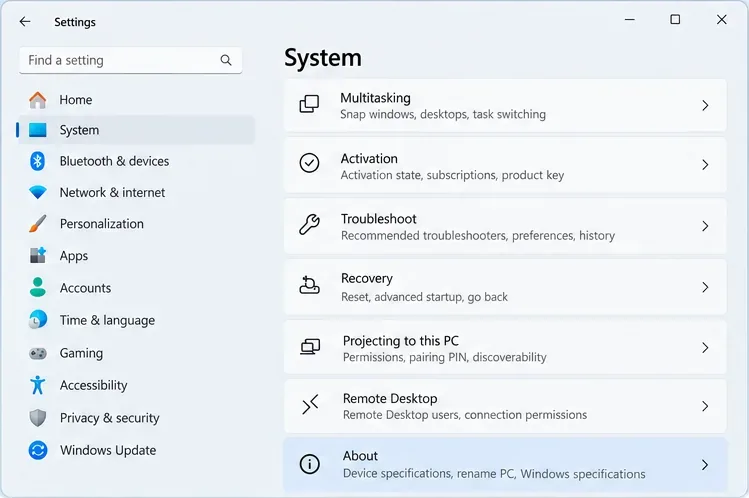
Right-click Start, select Settings, then choose System > About. You can also open Settings normally and navigate to System, then About. These are the paths in Microsoft’s guide to finding Windows device information. On a smaller window you may need to scroll through System to find About. The navigation example below shows the destination; it is not a capture of your device.
Open Settings, choose System, and select About; the highlighted row marks where to check the installed Windows release.
2. Read both fields under Windows specifications
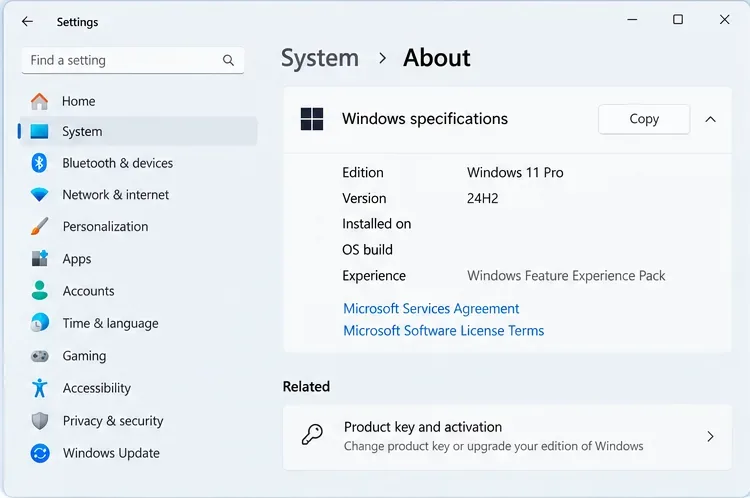
On System > About, scroll to Windows specifications. Write down the exact values beside Edition and Version. An example of an affected combination is “Windows 11 Pro” and “24H2”; “Windows 11 Home” and “24H2” is another. “Windows 11 Enterprise” and “24H2” follows the Enterprise servicing date instead. The OS build is useful when diagnosing a specific update, but it is not a substitute for checking both Edition and Version. The example values in the image are hypothetical.
Under Windows specifications, read Edition and Version together. The pictured Pro and 24H2 values illustrate the affected combination.
If Settings is hard to reach, type winver into Windows Search and open the result to quickly inspect the Windows version and build. Still use System > About to verify the edition clearly before applying an edition-specific support date. Do not confuse “Home versus Pro” with “24H2 versus 25H2”: changing edition and moving to a newer feature release are different actions.
Which response fits your computer?
What About shows
Practical next step
Main tradeoff
Home or Pro family, 24H2; 25H2 offered
Back up important files, install the offered feature update, then verify the new version.
Requires download, restart time, and a check of important apps and accessories.
Home or Pro family, 24H2; no 25H2 offer
Install available current updates, check for a compatibility notice, and plan support before October 13.
Waiting may avoid a known compatibility issue, but waiting past end of updates prolongs exposure on 24H2.
Enterprise or Education, 24H2
Confirm the edition and follow your organization’s deployment schedule.
The 24H2 servicing date is later, but local IT policies may control updates.
Already on 25H2
Keep ordinary Windows updates enabled and confirm update status.
The October 13 date for 24H2 is not your current version’s deadline.
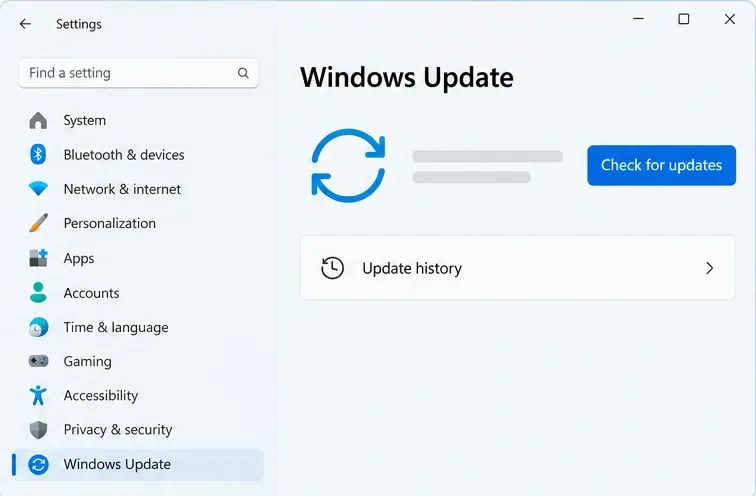
If the update is offered, use Windows Update
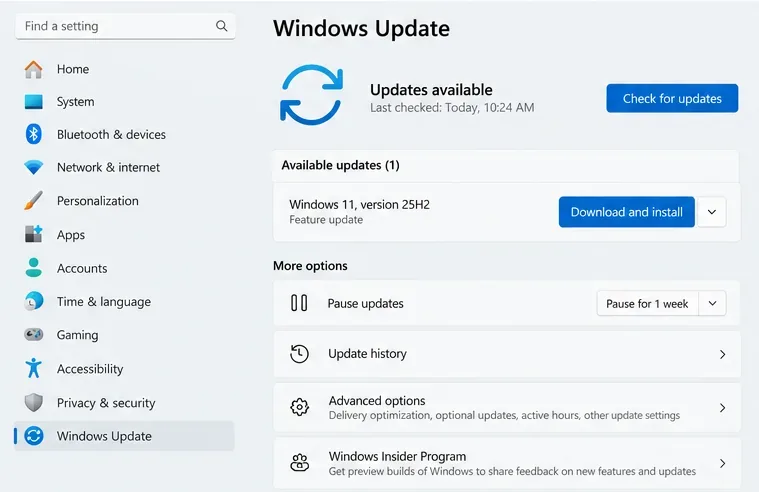
Open Settings > Windows Update and choose Check for updates. If Windows 11, version 25H2 is offered to your PC, follow its Download and install prompt and allow time for a restart. Microsoft’s Windows 11 24H2 release-health notice describes this path, and Microsoft’s Windows Update instructions documents the Windows Update check. Before changing a computer that holds irreplaceable files, make sure you can restore your important data; Microsoft’s Windows Backup guide explains Microsoft’s built-in backup option. If the machine is shared, used for work, or relies on specialized software, coordinate a suitable downtime window.
When the 25H2 feature update is actually offered, use Windows Update and its Download and install control. Availability varies by device.
Do not purchase a Pro edition upgrade solely to extend the life of 24H2. Home and Pro 24H2 share the October 13, 2026 end-of-updates date. Buying a different edition would involve licensing and feature choices, while installing a supported feature release addresses this particular servicing deadline. Nor is “26H1” the obvious next button for a current 24H2 PC: Microsoft’s Windows 11 26H1 availability note says 26H1 is preinstalled on selected new hardware and is not offered as an in-place feature update through Windows Update for existing devices.
If the update is not offered, investigate without forcing a guess
A missing 25H2 offer does not by itself mean that the PC is ineligible or that you must download installation media immediately. Check whether Windows Update is paused, install currently available quality updates, restart if prompted, then check again. A known compatibility problem can also cause a temporary safeguard hold; Microsoft’s guidance on safeguard holds explains how Microsoft uses holds to prevent affected devices from receiving a feature update until a problem is resolved. For a managed PC, organizational update policy may determine when the feature release appears. If the October date is close, bring the Edition and Version values, any update message, and the device model to your administrator or Microsoft support rather than leaving the issue unattended.
After updating, confirm that it finished
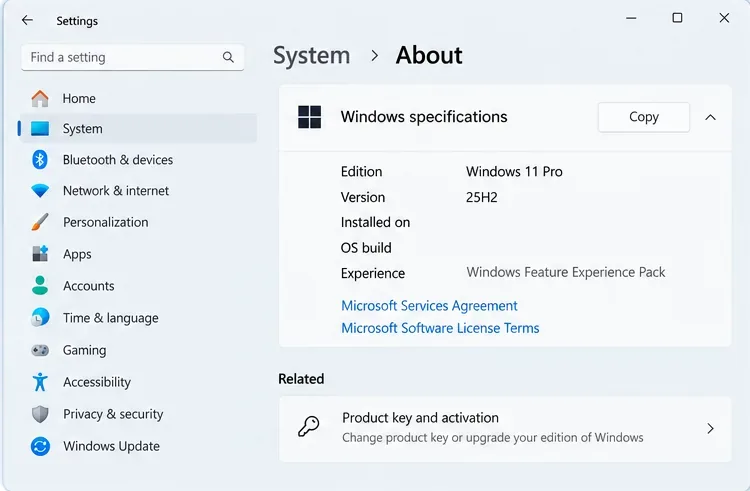
Return to Settings > System > About > Windows specifications after the restart. The Version field should show the installed release, such as 25H2 if that is what you installed. Check Windows Update again for any remaining updates. This confirmation is more useful than assuming success because the installation downloaded or a restart happened. The example below pairs the unchanged Pro edition with a newer version: the edition did not have to change for the 24H2 deadline to stop applying.
After the feature update and restart, verify that Version now reads 25H2 while the edition remains the one licensed on your PC.
How to decide without overreacting
For a personal Home or Pro PC that is ready for 25H2, updating before October 13 is the straightforward way to stay on a supported Windows 11 release. Back up first and schedule the restart when it will not interrupt work. If a device has a compatibility hold or depends on a sensitive application, investigate that specific blocker promptly; the tradeoff is between the risk of disrupting a working setup and the risk of staying on 24H2 past its update deadline. On Enterprise or Education, let the installed edition and the organization’s policy drive the schedule, not the Home/Pro headline.
The reliable test is simple: look at Edition and Version in About, compare that exact combination with Microsoft’s supported Windows client versions table, and then look at the update actually offered to your machine. Microsoft can revise rollout and issue information, so check its release-health page again before a time-sensitive change. The date and choices here reflect the official information available as of September 27, 2026; they cannot establish whether your particular computer has already received or can currently install 25H2.