How to Fix iPhone 17 Camera Lag When Switching Lenses
Fix iPhone 17 camera lag when switching lenses with verified iOS, Macro Control, Camera Control, storage, heat, and hardware checks.
Last verified: September 11, 2026. If Apple Intelligence is missing, stuck downloading, or only some features are unavailable on an iPhone 17, the phone model itself is usually not the first thing to blame. Apple lists iPhone 17 as an Apple Intelligence-capable device, and its current compatibility requirement includes iPhone 15 Pro models plus iPhone 16 models and later. The more common explanations are software version, Apple Intelligence being turned off, unfinished model downloads, insufficient storage, a language or region mismatch, or a restriction that affects only a specific feature.
This guide follows Apple’s current support documentation and deliberately avoids “fixes” that Apple does not document as Apple Intelligence troubleshooting steps. You do not need to factory-reset the phone just because one feature is missing, and you should not assume every Apple Intelligence capability is available in every language or region.
“Apple Intelligence is not working” can describe several different situations:
Verified: Apple says feature availability varies by platform, language, and region. Apple Intelligence is also still identified as beta in the iPhone 17 technical specifications. That means one missing feature does not automatically mean the entire Apple Intelligence system has failed.
Action: pick one feature to test first. Write down exactly what is missing—for example, “Apple Intelligence toggle is absent,” “Writing Tools does not appear,” or “ChatGPT is unavailable in Siri.” That makes the checks below much faster.
Start with software because Apple explicitly recommends updating to the latest software version before using Apple Intelligence. The minimum documented system requirement is iOS 18.1 or later, but an iPhone 17 should be kept on the latest iOS version offered to it so you have the newest Apple Intelligence features and fixes.
As of this article’s verification date, Apple’s security documentation lists iOS 26.6 as released on July 27, 2026. Do not treat that number as a permanent target: if Settings → General → Software Update offers a newer version for your iPhone, use the newer Apple-provided update.
You can verify the requirements on Apple’s How to get Apple Intelligence page and confirm iPhone 17 support in the official iPhone 17 technical specifications. Apple’s iOS 26.6 security release page provides the July 27, 2026 release date.
Common misunderstanding: seeing “iOS 18.1 or later” in the minimum requirements does not mean staying on an old iOS build is the best troubleshooting choice. Apple separately says to update to the latest software to access the most recent available features.
Action: open Settings → General → Software Update. Install the latest version offered by Apple, then let the iPhone complete the update before testing Apple Intelligence again.

After the software is current, go to Settings → Apple Intelligence & Siri. Depending on your iOS version and whether you previously configured the feature, Apple says you may see either a switch next to Apple Intelligence or a Turn on Apple Intelligence option.
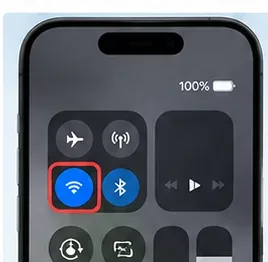
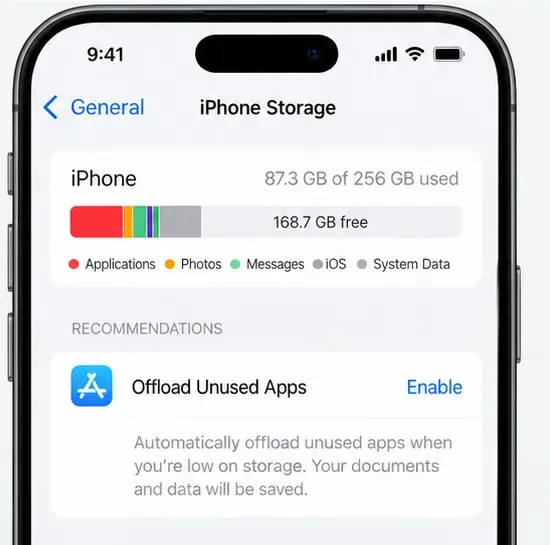
Verified: after a software update, the on-device Apple Intelligence models may need to download. Apple says download time varies and recommends keeping the device connected to Wi-Fi and a power source for the fastest model-download experience. Apple also documents a requirement of approximately 7 GB of on-device storage for Apple Intelligence.
If storage is tight, check Settings → General → iPhone Storage. Apple’s storage guidance shows the available space at the top and may offer recommendations for removing or offloading content. See Apple’s iPhone storage instructions.
Common misunderstanding: turning Apple Intelligence on does not guarantee that every model is instantly ready. Apple specifically says the model download can take time. If you recently updated iOS or changed the Siri language, waiting for the download to finish can be part of the fix.
Context-dependent: Apple does not publish one universal download duration. Network speed, power state, software version, and the assets required for your language can affect how long the process takes.
Action: confirm Apple Intelligence is on, make at least 7 GB of device storage available, connect the iPhone to reliable Wi-Fi and power, and leave it long enough for model downloads to complete. Then return to Apple Intelligence & Siri and test the same feature again.

If Apple Intelligence is enabled but a feature is still missing, this is where the diagnosis becomes more specific.
Verified: Apple requires the device language and Siri language to be set to the same supported language. With iOS 26.1 and later, Apple lists support in most regions for English, Danish, Dutch, French, German, Italian, Norwegian, Portuguese, Spanish, Swedish, Turkish, Chinese (Simplified), Chinese (Traditional), Japanese, Korean, and Vietnamese. Individual features can still vary by language and region.
Apple also warns that after you change Siri’s language, Apple Intelligence may temporarily become unavailable until the new Siri language has fully downloaded and matches the device language.
Action: check your iPhone’s language under Settings → General → Language & Region, then check Siri’s language under Settings → Apple Intelligence & Siri. Make them the same supported language, then allow any required language assets to finish downloading.
Verified: Apple Intelligence is available in most regions, but Apple documents an important exception for China mainland. Apple says the features currently do not work on supported devices purchased in China mainland. For a supported device purchased outside China mainland, the features also currently do not work when the user is in China mainland and the Apple Account Country or Region is also China mainland.
Common misunderstanding: changing the Region field to “United States” is not a universal fix and should not be treated as one. Apple’s rules depend on actual availability, device purchase location in the China-mainland case, Apple Account country/region, language, and the specific feature.
Action: compare your actual country, Apple Account country/region, and language with Apple’s current Apple Intelligence availability requirements. Do not change account-region information merely to imitate another country unless that accurately reflects your account and location circumstances.

Apple Intelligence and Siri are related, but not every Apple Intelligence feature is a Siri feature. If Writing Tools works but Siri does not respond, troubleshoot Siri specifically. Apple’s iPhone guide says Siri must be turned on before it can respond to requests; the setting is under Siri or Apple Intelligence & Siri → Talk to Siri, depending on software configuration.
Action: if the problem is limited to Siri, confirm Talk to Siri is enabled and test both voice activation and Type to Siri where available. Do not use a working Genmoji or Writing Tools feature as proof that Siri itself is configured.
Verified: Screen Time can separately restrict Apple Intelligence capabilities. Apple documents controls for Writing Tools, Image Creation features such as Image Playground and Genmoji, and Intelligence Extensions such as ChatGPT.
The path in current Apple documentation is Settings → Screen Time → Content & Privacy Restrictions → Intelligence & Siri. From there, the relevant category can be set to Allow or Don’t Allow.
See Apple’s Screen Time controls for Apple Intelligence.
Action: if Apple Intelligence is on but Writing Tools, image creation, or an intelligence extension is missing, inspect Screen Time before reinstalling apps or changing unrelated system settings.
Verified: Apple says the ChatGPT extension is available only in regions where the ChatGPT app and service are available. Apple also notes that users must meet the applicable minimum age requirement, and Screen Time can block intelligence extensions. This means ChatGPT being unavailable does not prove that Apple Intelligence itself is broken.
You can review Apple’s current ChatGPT with Apple Intelligence instructions.
Action: if Genmoji, Writing Tools, or Apple Intelligence-powered Siri features work but ChatGPT does not, check the ChatGPT extension setting, regional availability, age eligibility, and Screen Time restrictions instead of resetting Apple Intelligence as a whole.
Once software, models, storage, languages, and restrictions are correct, restart the iPhone. Apple’s current restart procedure for iPhone X and later is to press and hold either volume button together with the side button until the power-off slider appears, drag the slider, wait about 30 seconds for the phone to turn off, and then hold the side button to turn it back on.
See Apple’s official iPhone restart instructions.
Common misunderstanding: a factory reset or “Reset All Settings” should not be the default next step for an Apple Intelligence complaint. Apple’s primary Apple Intelligence setup guidance focuses first on compatibility, software, the Apple Intelligence setting, storage, languages, regions, and model downloads. Resetting broad system settings can create additional work without identifying which requirement failed.
Action: perform a normal restart first. After the phone comes back on, test exactly one known feature—for example, Writing Tools in a supported text field—rather than testing five different features at once.

| Symptom | Most useful check | What not to assume |
|---|---|---|
| Apple Intelligence setting is missing | Confirm latest iOS, language/region support, and device requirements | Do not assume iPhone 17 is unsupported |
| Apple Intelligence is on but features are unavailable after an update | Allow model downloads to finish on Wi-Fi and power; verify free storage | Do not assume the update “broke” the phone immediately |
| Feature disappeared after changing Siri language | Match device and Siri languages and wait for the new Siri language download | Do not keep switching languages repeatedly |
| Writing Tools or image features alone are missing | Check Screen Time → Content & Privacy Restrictions → Intelligence & Siri | Do not assume all Apple Intelligence services are down |
| Only ChatGPT integration is unavailable | Check ChatGPT extension settings, service/region availability, age requirements, and Screen Time | Do not treat ChatGPT as identical to Apple Intelligence |
| Everything was working and suddenly stops | Restart, confirm connectivity, and check Apple System Status | Do not immediately erase or reset the iPhone |
Some Apple Intelligence experiences can depend on network services. Apple’s public System Status page is the right place to check for a current Apple-side disruption. The exact services listed there can change over time, so this article does not claim that a specific Apple Intelligence service is down unless Apple reports it.
Unknown until checked: if your settings are correct but a cloud-dependent function suddenly fails, the cause could be temporary service availability, connectivity, or a feature-specific issue. A static troubleshooting article cannot determine that from your phone.
Action: check System Status at the time of the problem. If Apple shows an active incident, wait for the service to recover before changing major device settings.
When you think the problem is fixed, run this short checklist:
If the same feature still fails after all of those checks—and Apple System Status does not show a relevant incident—the next useful step is Apple Support, because the remaining cause may depend on your specific account, device configuration, software state, or feature availability. At that point, avoid guessing: note your iPhone model, iOS version, device language, Siri language, country/region, the exact feature that fails, and any message shown on screen. That gives support enough context to distinguish a setup issue from a software or service problem.
Fix iPhone 17 camera lag when switching lenses with verified iOS, Macro Control, Camera Control, storage, heat, and hardware checks.
Apple lists no Intel Macs for macOS 27. Learn how to identify your Mac, check the latest compatible release, and prepare apps and backups before upgrading.
Fix iPhone 17 game stutter and frame drops by checking Low Power Mode, Game Mode, heat, updates, storage, restarts, and last-resort settings.
Fix eSIM Transfer Failed on iPhone 17 Pro Max by checking Quick Transfer requirements, Wi-Fi and Bluetooth, iOS updates, carrier support, and QR-code fallback options.
Fix an iPhone 17 “Storage Almost Full” warning after an iOS update by checking real usage, allowing indexing to finish, freeing safe space, and updating iOS.
Fix repeated Wi‑Fi 7 disconnects on iPhone 17 Pro with Apple-supported steps for iOS, 6 GHz mode, router settings, VPNs, Private Wi‑Fi Address, and network reset.
Move contacts, photos, messages, apps, and WhatsApp chats from Android to iPhone 17 using the official Move to iOS method, with setup requirements and recovery tips.
Fix an iPhone 17 microphone that stops working on calls with Apple-verified tests for blocked mics, audio routing, permissions, iOS, and service.
Fix Apple Intelligence on iPhone 17 with verified Apple steps for iOS updates, model downloads, storage, language and region settings, Screen Time, Siri, and restart checks.
iPhone 17 battery draining fast after an iOS update? Diagnose post-update activity, apps, display, 5G, power modes, and battery health safely.