How to Fix iPhone 17 Camera Lag When Switching Lenses
Fix iPhone 17 camera lag when switching lenses with verified iOS, Macro Control, Camera Control, storage, heat, and hardware checks.
As of September 27, 2026, Apple lists no Intel-based Mac as compatible with macOS 27 Golden Gate. If your Mac has an Intel processor, you can check its exact model and the newest macOS Apple offers for it, but you should not plan a standard macOS 27 installation. Apple’s macOS 27 compatibility list includes Apple silicon models only. The difference matters because some Intel Macs remain eligible for macOS Tahoe 26, the previous major release.
Consider this hypothetical example throughout the guide: Maya uses a MacBook Pro (16-inch, 2019) for client work. She sees macOS 27 discussed ahead of her autumn maintenance window and wants to decide what to do before changing anything. Maya and her computer are illustrative; no installation or compatibility test was performed for this article.
Maya opens the Apple menu in the upper-left corner and selects About This Mac. She records the model name, processor or chip, and installed macOS version. On an Intel machine, the processor line identifies an Intel Core or Xeon chip; an Apple silicon Mac identifies an Apple chip. If a company inventory label or purchase receipt gives a different year, she uses the model shown by the Mac as the starting point. Apple explains how to find the Mac model name and serial number and the installed macOS version. She keeps the serial number private when sharing screenshots.
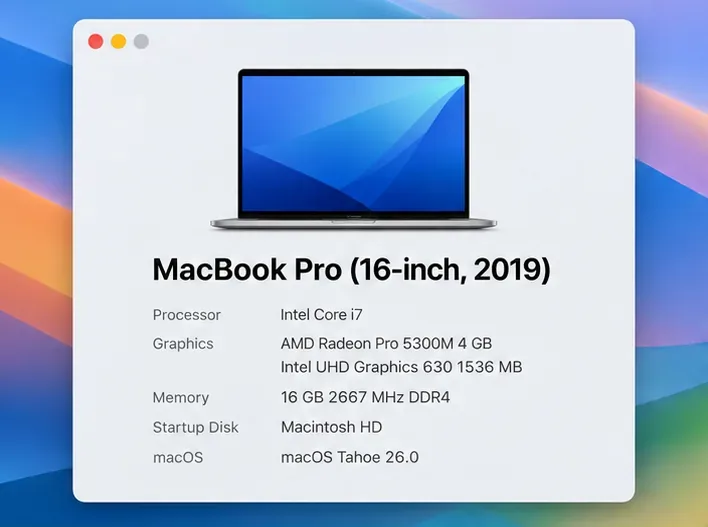
“2019 MacBook Pro” alone is too broad a description when reading an older compatibility list. The screen size, year, and configuration distinguish models. The installed operating system is a separate fact: running Tahoe 26 does not make a Mac eligible for Golden Gate 27.
Apple’s macOS 27 list, published September 14, 2026, names MacBook Air and MacBook Pro models with Apple silicon, iMac and Mac mini models with Apple silicon, Mac Studio, the Apple silicon Mac Pro, and MacBook Neo. It includes no Intel model. For Maya, the processor check answers the central question before she downloads an installer: her Intel MacBook Pro is outside the supported list. The macOS 27 overview likewise describes compatibility in Apple silicon terms. Check the live list again if you are reading this after Apple revises its guidance.
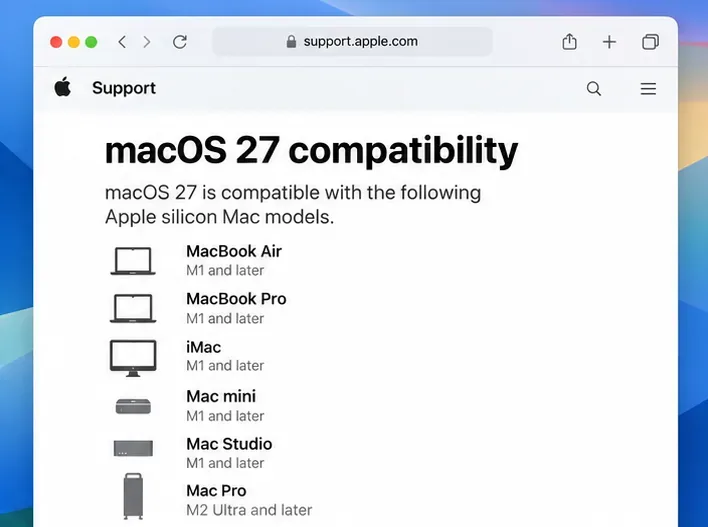
This is a support decision, not a judgment that Maya’s laptop has stopped working. An unsupported installation route could involve third-party modifications and does not change Apple’s published model eligibility. A business or school Mac may also have management policies that govern upgrades, so Maya checks with its administrator before any major change.
Maya then reads Apple’s macOS Tahoe 26 compatibility list. It specifically includes MacBook Pro (16-inch, 2019), along with the Intel MacBook Pro (13-inch, 2020, Four Thunderbolt 3 ports), iMac (Retina 5K, 27-inch, 2020), and Mac Pro (2019). Other Intel Macs are not automatically Tahoe-compatible. Owners of a different model should look it up on Apple’s corresponding compatibility page instead of borrowing Maya’s answer.
In System Settings > General > Software Update, Maya lets the Mac check for what is offered to that model. Apple says Software Update shows compatible updates and can say a Mac is up to date even when a newer major version exists for different hardware. If she is already on Tahoe, a Tahoe point update may still be available; if she is on an older release, the offered upgrade depends on her exact model and current state. She does not interpret the absence of macOS 27 as a broken update checker. Apple’s Software Update instructions describe this behavior and recommend the latest macOS compatible with the Mac.
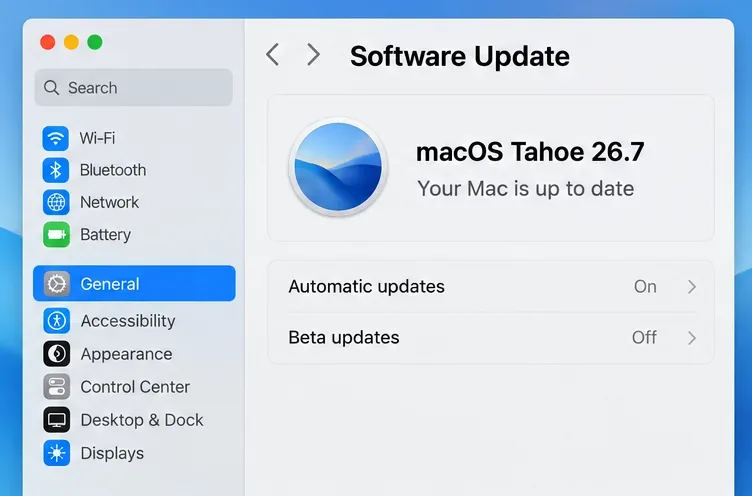
The illustrated Tahoe 26.7 screen is an example state, not a screenshot from Maya’s machine. Apple’s version reference listed macOS 27.0 and Tahoe 26.7 when this article was checked. Exact point releases and available updates can change, so read the version displayed on your own Mac rather than treating the illustration as a live status report.
For Maya, three practical paths emerge. If her required apps and security policies work on Tahoe 26, she can keep the Intel Mac on its latest compatible updates and schedule a later hardware replacement. If she needs an application that requires macOS 27, she must plan an Apple silicon Mac that appears on Apple’s 27 list and confirm that the application and peripherals support that new hardware. If an essential older app cannot run on her planned replacement, she should confirm its vendor’s current requirements before committing to the move. Operating system eligibility alone never proves compatibility with a specific printer, plug-in, driver, or workplace tool.
This choice is especially relevant for a developer or specialist with Intel-only software. Apple’s Rosetta guidance concerns running some Intel-based apps on Apple silicon; it does not make an Intel Mac eligible for macOS 27. Maya makes a short list of the apps, devices, and account access she cannot interrupt, then checks each vendor’s official support information for her intended macOS and Mac chip.
Before changing a supported Mac, Maya verifies a recent backup. Apple describes Time Machine as a built-in way to back up Mac files to an external storage device. She confirms that the backup destination is connected and that a backup completed, then checks that important working files are included. Syncing a document to a cloud account is useful, but a separate recoverable copy gives her another path if something goes wrong. She also confirms enough free storage, a reliable network connection, access to her administrator password, and a time window when the Mac can restart.
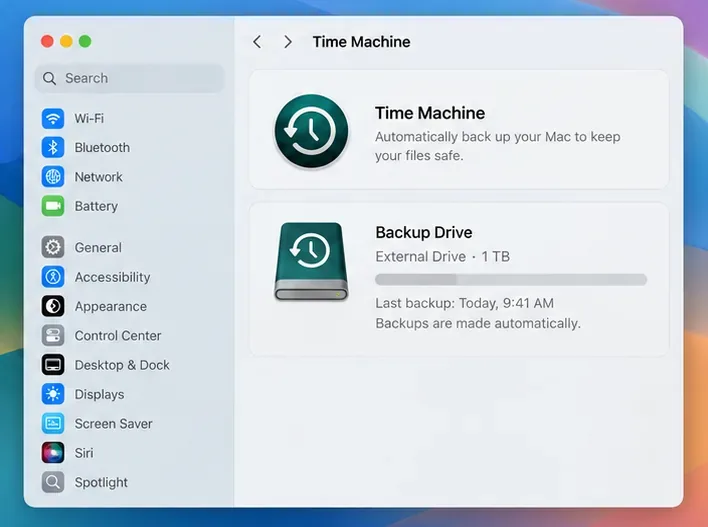
For Maya’s Intel Mac, this preparation applies to a compatible Tahoe update or a migration to a replacement machine; it does not create macOS 27 eligibility. She can finish with a simple record: exact model, chip, installed version, Apple’s latest compatible version for that model, app and device checks, and the date of her last usable backup.
First, return to About This Mac and compare the full model name with Apple’s macOS 27 model list. If it is Intel-based, the missing 27 offer is consistent with Apple’s published compatibility. Next, check whether a supported update for your currently installed macOS is available. If the machine is Apple silicon and appears on the 27 list, follow Apple’s Software Update troubleshooting guidance and any organization policy before assuming something is wrong. The check succeeds when you know which release the hardware supports and have a backup and app plan—not merely when a new installer appears.
Fix iPhone 17 camera lag when switching lenses with verified iOS, Macro Control, Camera Control, storage, heat, and hardware checks.
Apple lists no Intel Macs for macOS 27. Learn how to identify your Mac, check the latest compatible release, and prepare apps and backups before upgrading.
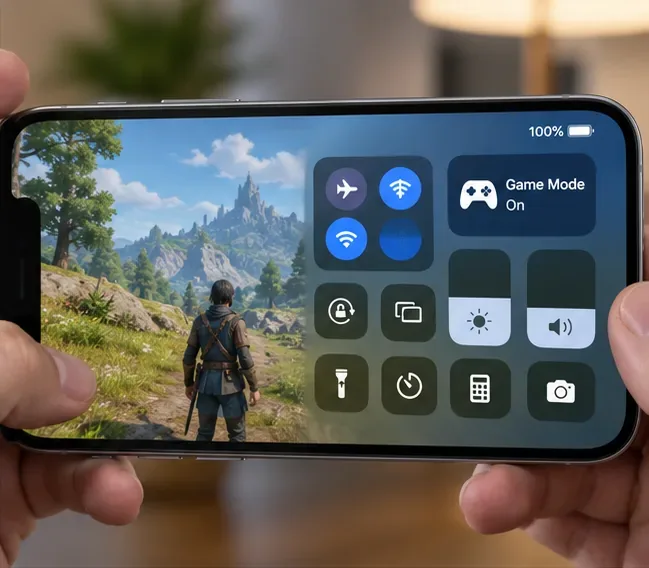
Fix iPhone 17 game stutter and frame drops by checking Low Power Mode, Game Mode, heat, updates, storage, restarts, and last-resort settings.
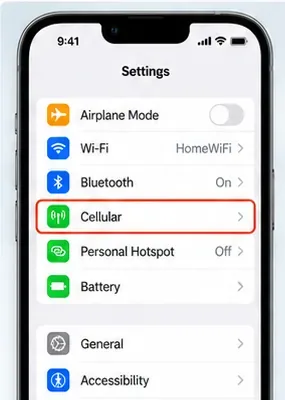
Fix eSIM Transfer Failed on iPhone 17 Pro Max by checking Quick Transfer requirements, Wi-Fi and Bluetooth, iOS updates, carrier support, and QR-code fallback options.
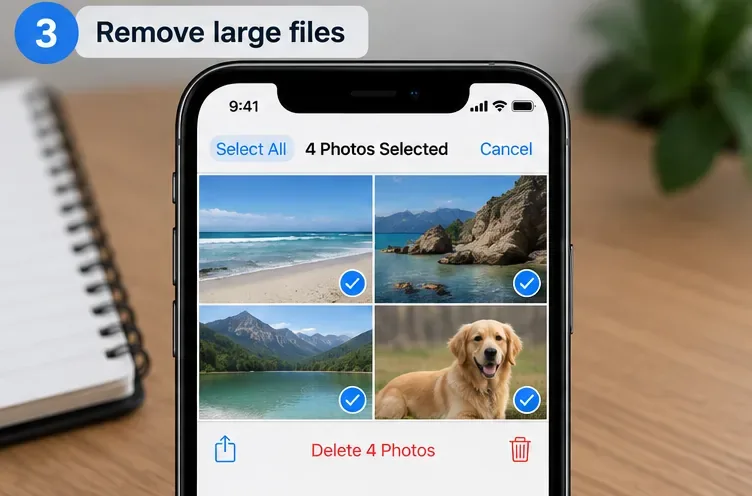
Fix an iPhone 17 “Storage Almost Full” warning after an iOS update by checking real usage, allowing indexing to finish, freeing safe space, and updating iOS.
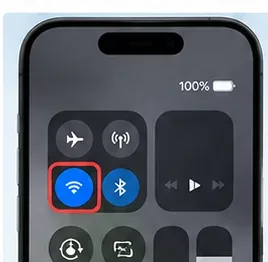
Fix repeated Wi‑Fi 7 disconnects on iPhone 17 Pro with Apple-supported steps for iOS, 6 GHz mode, router settings, VPNs, Private Wi‑Fi Address, and network reset.
Move contacts, photos, messages, apps, and WhatsApp chats from Android to iPhone 17 using the official Move to iOS method, with setup requirements and recovery tips.
Fix an iPhone 17 microphone that stops working on calls with Apple-verified tests for blocked mics, audio routing, permissions, iOS, and service.
Fix Apple Intelligence on iPhone 17 with verified Apple steps for iOS updates, model downloads, storage, language and region settings, Screen Time, Siri, and restart checks.
iPhone 17 battery draining fast after an iOS update? Diagnose post-update activity, apps, display, 5G, power modes, and battery health safely.