How to Fix iPhone 17 Camera Lag When Switching Lenses
Fix iPhone 17 camera lag when switching lenses with verified iOS, Macro Control, Camera Control, storage, heat, and hardware checks.
When an iPhone 17 game suddenly looks choppy, the screen is not necessarily defective. “Stuttering” can mean several different things: the game may be rendering frames unevenly, the display may be running at a lower refresh rate, the phone may be reducing performance because of temperature or power conditions, or an online game may simply be suffering from network latency. The right fix depends on which problem you actually have.
The most useful starting fact is verified: Apple lists the iPhone 17 display as ProMotion with an adaptive refresh rate of up to 120Hz. “Up to 120Hz” does not mean every game renders at 120 frames per second. Apple’s developer documentation explains that apps request frame-rate ranges and that the actual rate can vary with hardware capability, system policy, thermal state, and other conditions. Action: if your game has its own 60/90/120 fps option, test one step lower—often 60 fps—before changing system settings. A stable target can feel smoother than a higher target that the game cannot sustain. See Apple’s iPhone 17 technical specifications and ProMotion developer guidance.
| Symptom | What it suggests | What to do first |
|---|---|---|
| The whole scene hitches or animation cadence becomes uneven, even in an offline mode. | More likely a frame-rate or frame-pacing problem. | Work through the eight fixes below. |
| Animation stays smooth, but opponents jump, shots register late, or your character rubber-bands. | More likely network latency than display stutter. | Test another Wi-Fi network or an offline mode. Apple notes that network congestion can make apps feel slow. |
| Only one game stutters while other demanding games remain smooth. | More likely game-specific settings, assets, shaders, or a software bug. | Update that game and check its own graphics/frame-rate settings. |
| The Home Screen, scrolling, or touch response also stutters outside games. | Potentially a broader iOS, thermal, battery, accessibility, or hardware issue. | Restart, update iOS, and consider Apple service if the problem persists. |
What is not known from symptoms alone is whether a particular game build has a rendering bug on your exact iPhone model. Without developer profiling data, no generic troubleshooting guide can prove the root cause. The goal is to isolate variables in a safe order.
This is one of the clearest, verified causes of a lower display ceiling. Apple states that on iPhones with ProMotion, Low Power Mode limits the display refresh rate to 60Hz. On iPhone 15 and later, go to Settings > Battery > Power Mode and turn Low Power Mode off. Then relaunch the game and compare the same scene.
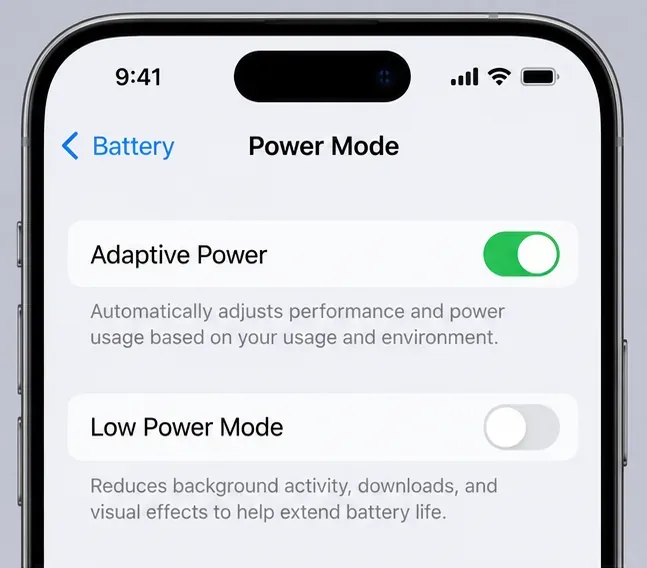
Common misconception: Adaptive Power and Low Power Mode are the same thing. They are not. Apple says Adaptive Power is enabled by default on iPhone 17 models, but it also says Adaptive Power does not manage performance while you are playing games with Game Mode on. Action: leave Adaptive Power alone during your first test and focus on Low Power Mode plus Game Mode. Read Apple’s Low Power Mode documentation and Adaptive Power documentation.
Game Mode is available on iPhone with iOS 18 or later for supported games. Apple says it gives the game highest-priority access to CPU and GPU resources while reducing background-task usage, which can improve frame-rate consistency and responsiveness. It normally turns on automatically when a supported game enters full screen.
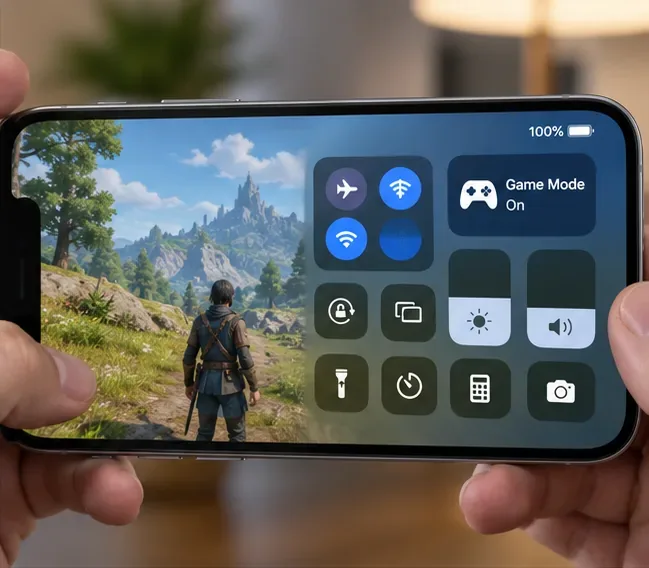
While the game is full screen, swipe down from the top-right to open Control Center, tap the game name and Game Overlay, open Controls, and verify Game Mode is on. If you previously disabled it for that game, Apple says it remains off until you turn it back on. Action: enable it, return to the exact same gameplay area, and compare. See Apple’s Game Mode support page.
Graphics-intensive games are specifically listed by Apple as workloads that can make an iPhone warm. Apple also says the device can change behavior to regulate temperature, and its developer documentation lists critical thermal state as a condition that can affect available frame rates. The supported ambient operating range is 32° to 95°F (0° to 35°C).
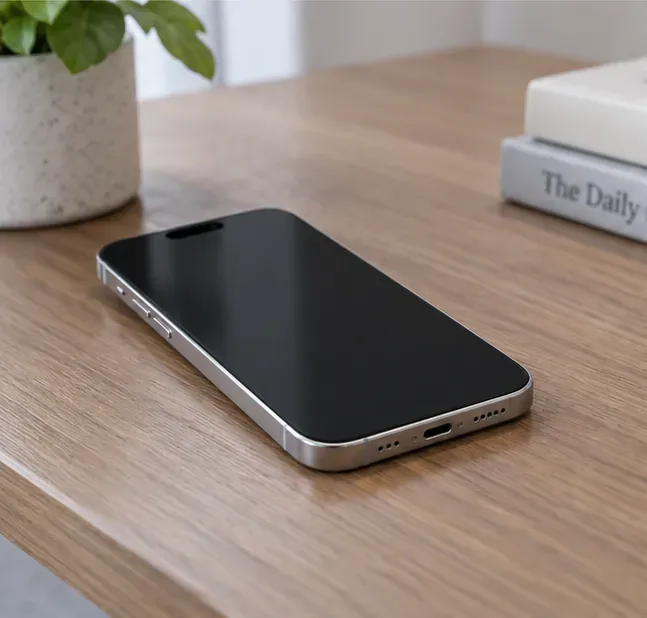
Action: if stutter appears only after 10–30 minutes of gaming, stop the game, move the phone out of direct sun, disconnect charging, and let it cool naturally. Do not put it in a refrigerator or freezer. Then replay the same level while unplugged. If the first several minutes are consistently smooth and performance falls as the phone becomes hot, thermal conditions are a strong clue—not proof, but a useful pattern. Apple’s temperature guidance is available here.
If one game is behaving badly after a long session, force-close that game from the App Switcher and reopen it. This can clear a stuck app state without changing anything else.
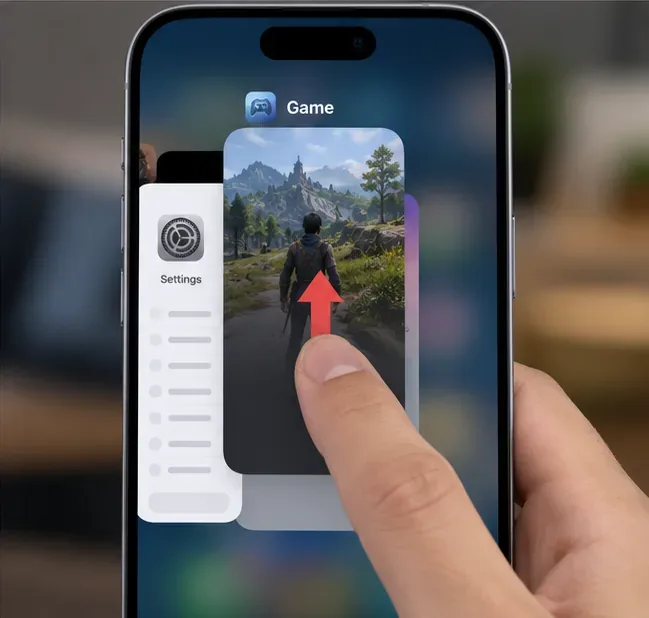
Common misconception: clearing every background app “frees RAM” and always improves gaming. Apple explicitly says there is typically no reason to quit apps that are behaving normally, and its performance guidance warns that unnecessarily force-closing apps can slow the device because apps must reload their data. Action: close only the game that is misbehaving, then retest. Apple’s slow-performance guidance also recommends keeping at least 1GB of storage free.
If the issue affects one title, the game itself should move high on your suspect list. Open the App Store, tap your account picture, open App Updates, and install any update for the game. Apple’s current iPhone guide documents this path.
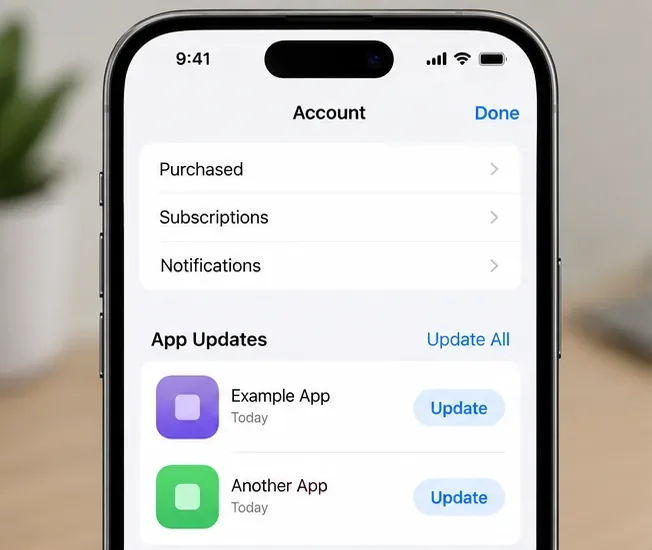
Next, go to Settings > General > iPhone Storage. Apple recommends maintaining at least 1GB of free space to avoid slowdowns. More free space may be useful for large game updates and temporary files, but Apple does not publish a universal “gaming free-space” number beyond that minimum. Action: free space if you are near full, restart the game, and test again. If the game still misbehaves and your progress is safely synced to the game’s account or cloud service, deleting and redownloading the app is a reasonable next step; Apple cautions that deleting an app can remove locally stored data. See Apple’s App Store update instructions.
As of September 13, 2026, Apple lists iOS 26.6.2, released September 8, 2026, as the latest version of iOS. Go to Settings > General > Software Update and install any available update after backing up important data.
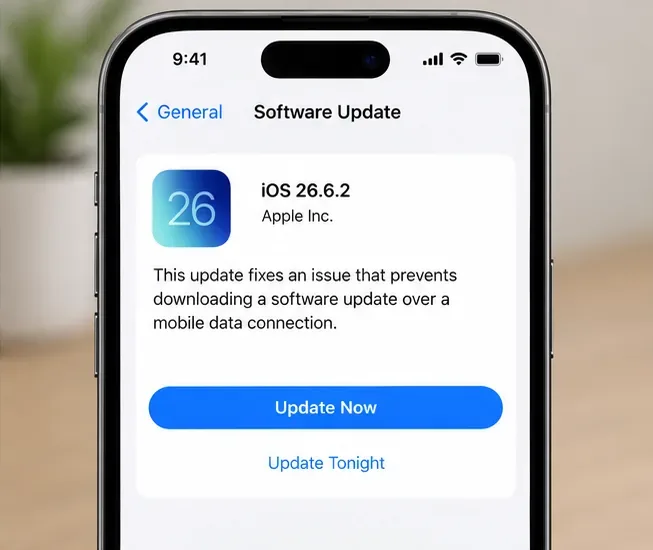
Important distinction: Apple’s published note for iOS 26.6.2 says it fixes an issue that prevented downloading a software update over a mobile data connection. Apple does not identify iOS 26.6.2 as a general iPhone 17 game-stutter fix. Staying current is still sensible because iOS updates include cumulative bug and security fixes, but a successful update does not prove the original issue was system-wide. Action: update, restart, then test the same game scene before changing more settings. See Apple’s iOS 26 release notes and iPhone update guide.
A normal restart is a low-risk way to clear temporary system state. For ordinary frame drops, power the iPhone off normally and turn it back on. If the phone itself stops responding, Apple’s force-restart sequence for Face ID iPhones is: press and quickly release Volume Up, press and quickly release Volume Down, then hold the Side button until the Apple logo appears.
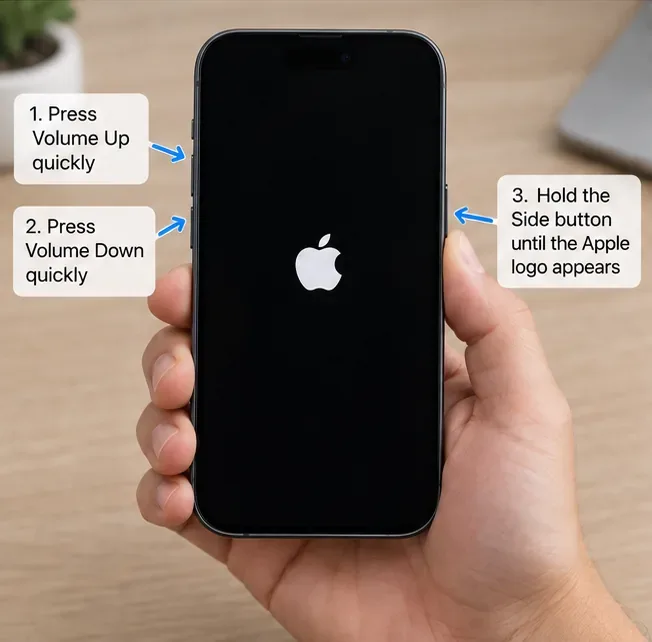
Action: use a normal restart first. Reserve the force-restart sequence for an unresponsive device rather than making it a routine performance ritual. Apple documents the sequence on its restart support page.
If stutter happens across multiple games, survives updates and restarts, and does not correlate with heat, a damaged or conflicting system setting is possible—but not proven. Apple describes Reset All Settings as a step that is rarely necessary.
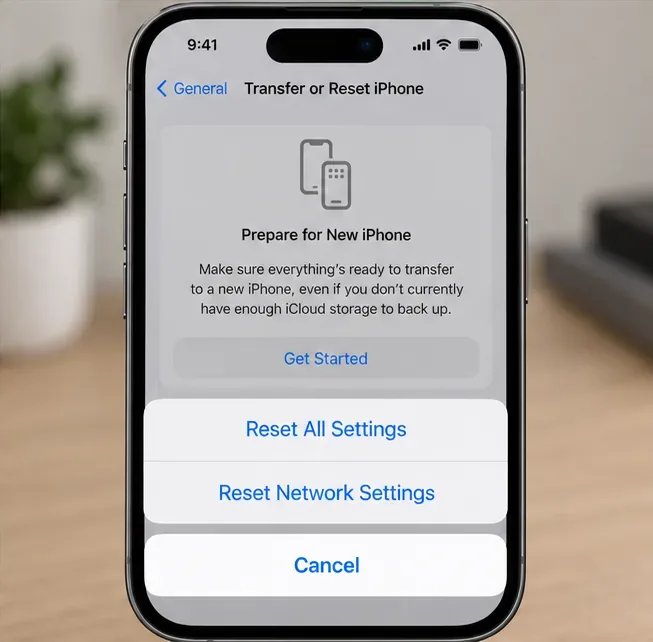
Go to Settings > General > Transfer or Reset iPhone > Reset > Reset All Settings. Apple says this does not delete your photos, messages, apps, documents, or other media. It does reset many preferences, including Wi-Fi networks and passwords, Bluetooth pairings, display settings, privacy settings, Face ID settings, and more. Action: make sure you know your Wi-Fi credentials and can re-pair accessories before proceeding. Review Apple’s Reset All Settings documentation.
If frame drops occur in many games and you also see slow app launches, unexpected shutdowns, unusual dimming, or degraded battery-health messages, check Settings > Battery > Battery Health. Apple states that battery aging can eventually cause effects that include lower frame rates. If Battery Health shows a service recommendation, or if stutter continues across games even when the phone is cool, fully updated, and not in Low Power Mode, service becomes more reasonable than repeated resets. Apple explains these effects in its battery and performance guidance for iPhone 11 and later.
Use the same game, the same graphics preset, and the same repeatable scene each time. First test with Low Power Mode off and Game Mode on. Then test while the phone is cool and unplugged. Update the game, make sure you have at least 1GB of free storage, update iOS, and restart. Change only one variable at a time. If lowering the game’s own frame-rate target makes the experience stable, you have useful evidence that the highest target was not sustainable in that workload. If every game stutters even at conservative settings, the problem is broader.
The biggest misconception to avoid is treating “120Hz screen,” “120 fps game,” and “zero frame drops” as the same promise. They are different. The iPhone 17 display can refresh up to 120Hz, but the game must still render frames on time, iOS can change available refresh behavior under certain conditions, and online latency can mimic performance trouble. A short, controlled troubleshooting sequence is much more reliable than toggling dozens of settings at once.
Fix iPhone 17 camera lag when switching lenses with verified iOS, Macro Control, Camera Control, storage, heat, and hardware checks.
Apple lists no Intel Macs for macOS 27. Learn how to identify your Mac, check the latest compatible release, and prepare apps and backups before upgrading.
Fix iPhone 17 game stutter and frame drops by checking Low Power Mode, Game Mode, heat, updates, storage, restarts, and last-resort settings.
Fix eSIM Transfer Failed on iPhone 17 Pro Max by checking Quick Transfer requirements, Wi-Fi and Bluetooth, iOS updates, carrier support, and QR-code fallback options.
Fix an iPhone 17 “Storage Almost Full” warning after an iOS update by checking real usage, allowing indexing to finish, freeing safe space, and updating iOS.
Fix repeated Wi‑Fi 7 disconnects on iPhone 17 Pro with Apple-supported steps for iOS, 6 GHz mode, router settings, VPNs, Private Wi‑Fi Address, and network reset.
Move contacts, photos, messages, apps, and WhatsApp chats from Android to iPhone 17 using the official Move to iOS method, with setup requirements and recovery tips.
Fix an iPhone 17 microphone that stops working on calls with Apple-verified tests for blocked mics, audio routing, permissions, iOS, and service.
Fix Apple Intelligence on iPhone 17 with verified Apple steps for iOS updates, model downloads, storage, language and region settings, Screen Time, Siri, and restart checks.
iPhone 17 battery draining fast after an iOS update? Diagnose post-update activity, apps, display, 5G, power modes, and battery health safely.