How to Fix iPhone 17 Camera Lag When Switching Lenses
Fix iPhone 17 camera lag when switching lenses with verified iOS, Macro Control, Camera Control, storage, heat, and hardware checks.
You install an iOS update on an iPhone 17, restart the phone, and suddenly see “Storage Almost Full.” The warning can be alarming when you did not add tens of gigabytes of photos or apps overnight. The first question is whether the phone is genuinely close to full or whether post-update system work is temporarily making the storage categories look unusually large.
As of September 11, 2026, Apple lists iOS 26.6.2 as the latest iOS release. Apple’s release notes say iOS 26.6.2 fixes a problem that prevented software-update downloads over a cellular connection; they do not identify a general iPhone 17 “Storage Almost Full” bug. Apple also says iOS 26.6 optimizes the Spotlight index in preparation for iOS 27. Separately, Apple documents that Spotlight re-indexing occurs after a software update and can take hours or even days depending on the amount of data on the device.
That distinction matters. “Storage Almost Full” is a real iOS warning, but seeing it after an update does not by itself prove that the update permanently consumed the missing space. Use the checks below before deleting important content or resetting the phone.
| What you see | What it suggests | Best first move |
|---|---|---|
| Photos, Apps, Messages, or downloads clearly fill most of the device | The phone is genuinely low on device storage | Use iPhone Storage recommendations and remove content you no longer need |
| “System Data” or “Other” became much larger immediately after an update | Indexing, logs, caches, or other system activity may be contributing | Leave the phone powered, connected, and mostly idle, then check again later |
| The warning appears but Settings shows substantial free space | The storage display or alert may be temporarily out of sync | Restart normally, install the latest iOS update, and recheck |
| Storage stays abnormally high for several days despite little user content | The issue needs deeper troubleshooting | Back up the iPhone and contact Apple Support rather than erasing it blindly |
Apple’s storage documentation says the “Other” category can include Siri voices, fonts, dictionaries, non-removable logs and caches, the Spotlight index, and other system data. “System” is the operating system itself. These categories are therefore not expected to be zero. Apple also notes that a standard iPhone 17 configuration can use roughly 12GB to 24GB for iOS 26 and included Apple apps, while on-device Apple Intelligence models can use additional space when enabled. See the iPhone 17 technical specifications and Apple’s iPhone storage guide.
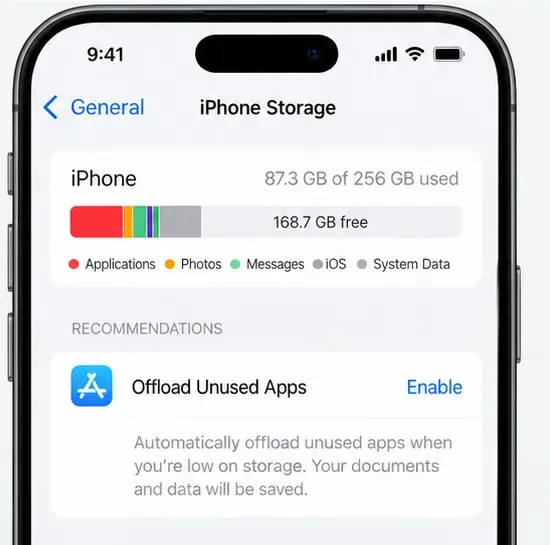
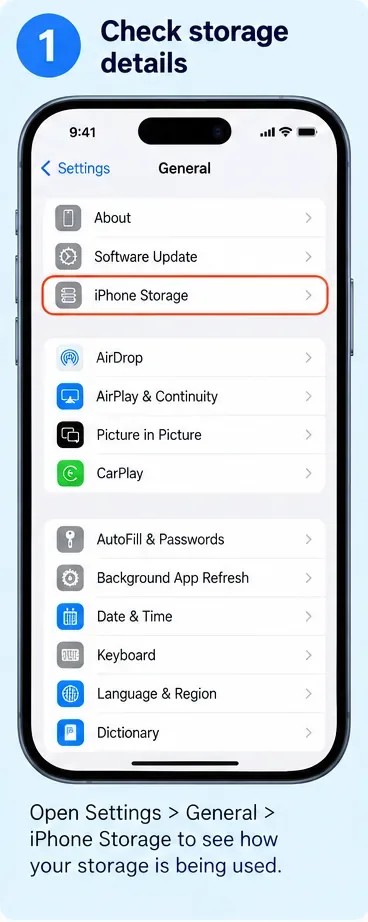
Open Settings > General > iPhone Storage. Give the page a moment to calculate the category bar and app list. Look at the amount used at the top, then identify which categories are actually taking the space.
Do not confuse device storage with iCloud storage. Buying more iCloud storage does not increase the physical capacity of an iPhone 17. iCloud can help by storing synchronized content and allowing optimized local copies, but the phone itself still has its fixed 256GB or 512GB capacity. Apple explains the distinction in its device-storage and iCloud-storage guide.
If the storage page shows that Photos, Apps, Messages, Media, or downloaded iCloud Drive files occupy almost all of the device, treat the warning as genuine and move to Step 3. If the main jump is in System Data or Other and it happened immediately after the system update, use Step 2 first.
Apple says Spotlight creates and updates a local search index of content on the device. Indexing runs after a software update and, on a device with a large amount of data, can take hours or days. Apple says indexing completes more quickly when the device is not being used, is connected to power, and is connected to the internet over Wi-Fi or Ethernet. See Apple’s Spotlight indexing documentation.
This is especially relevant around iOS 26.6 because Apple’s iOS 26 release notes specifically say that iOS 26.6 optimizes the Spotlight index to prepare for iOS 27.
Practical approach:
Do not expect a specific number of minutes. Apple explicitly says Spotlight indexing may take hours or days. If System Data falls after the phone has had time to finish its work, you have avoided unnecessary deletions.
If the storage bar still shows very little free space and large user-content categories account for most of the total, use the recommendations on the iPhone Storage page. Apple says iOS can suggest storage-saving actions and lets you review apps individually.
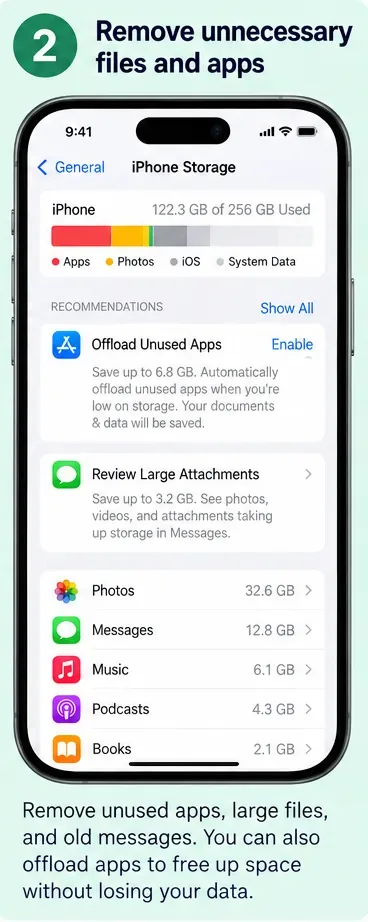
Offload App removes the app itself while keeping its documents and data so the app can be reinstalled later. Delete App removes the app and its related data. Apple documents both options in its Manage storage on iPhone guide. Read the app-specific details before deleting anything that contains local-only work.
Photos and video can consume storage quickly, especially if the phone contains high-resolution originals. If you use iCloud Photos and have enough iCloud capacity, Apple offers Optimize iPhone Storage, which keeps full-resolution originals in iCloud and uses space-saving versions on the device when appropriate. Apple explains this in Manage your photo and video storage.
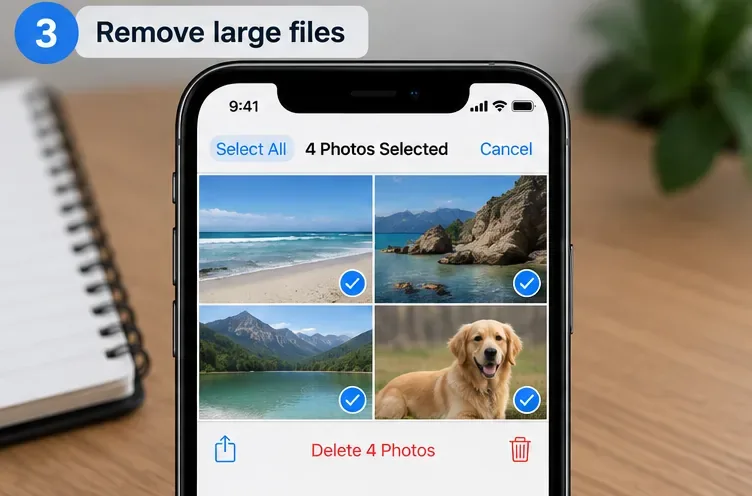
If you delete photos or videos, remember that recently deleted items can remain recoverable for a period and may continue to use storage until permanently removed. Only empty Recently Deleted if you are certain you no longer need those items.
The iPhone Storage page also reflects downloaded files, Safari downloads, Messages attachments, media, and app documents. Apple recommends removing content you no longer need and notes that downloaded TV content can be reviewed and removed. Large Messages attachments are another common candidate, but check them before deletion rather than clearing conversations indiscriminately.
Apple recommends keeping at least 1GB of free device storage to avoid slowdowns. More headroom is useful when you regularly install large apps, shoot video, or perform system updates. See Apple’s guidance for a slow iPhone or iPad.
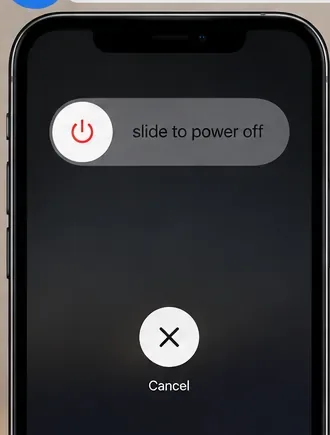
After the system has had time to finish post-update work—or after you have freed genuine user storage—restart the iPhone normally. On an iPhone 17, hold the side button and either volume button until the power-off slider appears, slide to power off, wait for shutdown, then hold the side button until the Apple logo appears. A force restart is intended for an iPhone that is unresponsive; it is not required for routine storage troubleshooting.
Next go to Settings > General > Software Update. As of September 11, 2026, Apple lists iOS 26.6.2 as the latest iOS release. If your iPhone 17 is still on iOS 26.6 or 26.6.1, install the newer release when available to your device. Apple’s notes say 26.6.2 fixes cellular software-update downloading; Apple does not claim that it specifically fixes a storage-warning bug. Keeping iOS current is still the correct baseline before escalating a system problem. See Apple security releases and Update iOS on iPhone.
If the iPhone 17 still reports almost no free space after post-update indexing should have had ample time to finish, the latest iOS release is installed, and your own content does not explain the usage, take a backup before deeper troubleshooting.
You can also connect the iPhone to a Mac Finder window or the Apple Devices app on Windows and inspect its storage bar. Apple notes that storage categories on a computer can differ from what the iPhone shows because cached content may be categorized differently, so use this as a comparison rather than assuming one bar is automatically more accurate.
At that point, contact Apple Support with the iOS version, iPhone 17 capacity, total used/free storage, and a screenshot of the iPhone Storage breakdown. That gives support enough context to distinguish a persistent software problem from a real storage shortage without beginning with an unnecessary erase-and-restore.
The safest fix for a post-update “Storage Almost Full” warning is not to attack System Data blindly. First determine whether the device is actually full. If the jump is concentrated in system categories, give iOS time to complete indexing and update-related work. If user content is genuinely consuming the space, use the storage controls Apple provides. Then restart, update, and verify the numbers before considering any disruptive recovery step.
Fix iPhone 17 camera lag when switching lenses with verified iOS, Macro Control, Camera Control, storage, heat, and hardware checks.
Apple lists no Intel Macs for macOS 27. Learn how to identify your Mac, check the latest compatible release, and prepare apps and backups before upgrading.
Fix iPhone 17 game stutter and frame drops by checking Low Power Mode, Game Mode, heat, updates, storage, restarts, and last-resort settings.
Fix eSIM Transfer Failed on iPhone 17 Pro Max by checking Quick Transfer requirements, Wi-Fi and Bluetooth, iOS updates, carrier support, and QR-code fallback options.
Fix an iPhone 17 “Storage Almost Full” warning after an iOS update by checking real usage, allowing indexing to finish, freeing safe space, and updating iOS.
Fix repeated Wi‑Fi 7 disconnects on iPhone 17 Pro with Apple-supported steps for iOS, 6 GHz mode, router settings, VPNs, Private Wi‑Fi Address, and network reset.
Move contacts, photos, messages, apps, and WhatsApp chats from Android to iPhone 17 using the official Move to iOS method, with setup requirements and recovery tips.
Fix an iPhone 17 microphone that stops working on calls with Apple-verified tests for blocked mics, audio routing, permissions, iOS, and service.
Fix Apple Intelligence on iPhone 17 with verified Apple steps for iOS updates, model downloads, storage, language and region settings, Screen Time, Siri, and restart checks.
iPhone 17 battery draining fast after an iOS update? Diagnose post-update activity, apps, display, 5G, power modes, and battery health safely.