How to Fix iPhone 17 Camera Lag When Switching Lenses
Fix iPhone 17 camera lag when switching lenses with verified iOS, Macro Control, Camera Control, storage, heat, and hardware checks.
If your iPhone 17 Pro connects to a Wi‑Fi 7 router, works for a few minutes, then drops and reconnects, the important question is whether the problem is with the phone, the router, the 6 GHz band, or a network configuration that only affects this Wi‑Fi.
There is a useful new Apple troubleshooting option as of August 25, 2026. Apple now explicitly documents that supported iPhones on a Wi‑Fi 6E or Wi‑Fi 7 network can turn Wi‑Fi 6E mode off for that specific network. Doing so prevents the device from using that network’s 6 GHz band while leaving Wi‑Fi 6E/Wi‑Fi 7 behavior on other networks unchanged. This gives iPhone 17 Pro owners a targeted compatibility test instead of requiring a router-wide downgrade.
The iPhone 17 Pro itself officially supports Wi‑Fi 7 (802.11be) with 2x2 MIMO using Apple’s N1 wireless networking chip. Wi‑Fi 7 availability, especially 6 GHz operation, still depends on regional spectrum rules and router support. See Apple’s iPhone 17 Pro technical specifications and Apple’s Wi‑Fi 6E and Wi‑Fi 7 guidance.
Before changing advanced settings, find out whether the iPhone disconnects everywhere or only on one router. Apple recommends checking whether other devices can use the same network and trying the iPhone on a different Wi‑Fi network.
Use this quick interpretation:
| Result | What it suggests |
|---|---|
| Only the iPhone 17 Pro disconnects on every Wi‑Fi network | Focus on iOS, VPN/security software, network settings, or the device itself. |
| Only this Wi‑Fi 7 router causes drops | Focus on 6 GHz compatibility, router firmware, SSID, security, channels, and access controls. |
| Every device loses connection | The router, modem, ISP, or wider network is the more likely problem. |
| The iPhone is stable on 5 GHz but unstable on the Wi‑Fi 7 network | Test the network’s 6 GHz behavior and router configuration. |
Apple’s current Wi‑Fi troubleshooting instructions say to update the iPhone to the latest available iOS version. Router firmware also matters: Apple recommends keeping router firmware current and enabling automatic firmware updates when the router supports them.
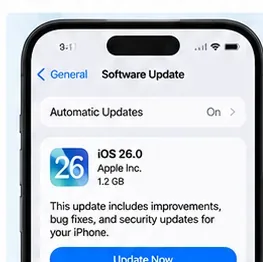
On iPhone, go to Settings > General > Software Update. For the router, use the manufacturer’s official administration app or web interface. If the router has just received a major Wi‑Fi 7 firmware upgrade, restart it after the update if the manufacturer instructs you to do so.
Do not assume an update guarantees a fix. The purpose of this step is to remove already-addressed compatibility and stability bugs before you spend time tuning the network manually.
Turn Wi‑Fi off and back on, then test again. If the problem persists, restart the iPhone. Apple also recommends restarting the router and cable modem by unplugging them and plugging them back in.
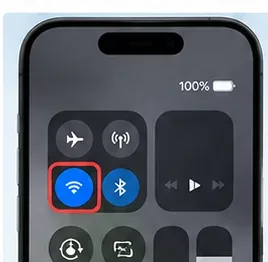
A restart is useful for temporary state problems; it is not evidence that the root cause has been removed. If the drop returns repeatedly, continue with the per-network checks below.
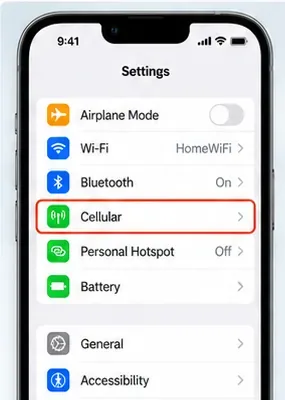
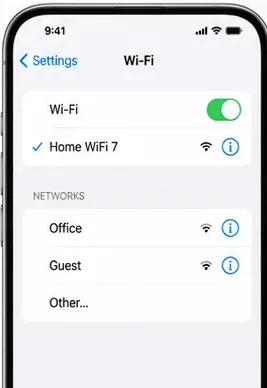
If the router settings changed recently—or if the saved Wi‑Fi profile is behaving unexpectedly—forget the network and rejoin it. Open Settings > Wi‑Fi, tap the information button next to the network, choose Forget This Network, then reconnect with the Wi‑Fi password.
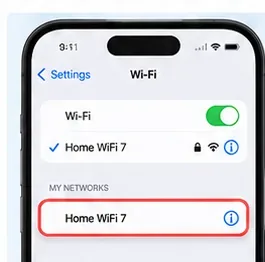
Apple notes that after router configuration changes, forgetting and rejoining can help the device adopt the router’s new settings. Be aware that forgetting the network also affects the private Wi‑Fi address state associated with that network under current iOS behavior.
This is the most Wi‑Fi‑7-specific test in Apple’s current guidance. When the iPhone 17 Pro is connected to a compatible Wi‑Fi 6E or Wi‑Fi 7 network, open Settings > Wi‑Fi, tap the network, then look for Wi‑Fi 6E Mode. Set it to Off.
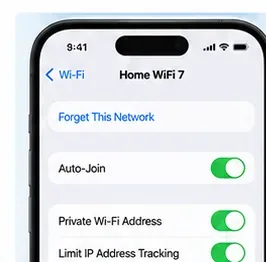
Apple says that turning this mode off stops the iPhone from using that network’s 6 GHz band; 2.4 GHz and 5 GHz remain available. It does not disable Wi‑Fi 6E or Wi‑Fi 7 on other networks.
If the disconnects stop after this change, you have narrowed the issue to the 6 GHz path or a feature associated with that tri-band configuration. You can leave the per-network mode off for stability or investigate the router settings below and retest 6 GHz later.
The option only appears when a supported device is connected to an appropriate Wi‑Fi 6E or Wi‑Fi 7 network. If you do not see it, do not assume something is broken; the current connection or regional configuration may not expose 6 GHz.
Router configuration is a common source of interoperability problems. Apple’s recommended settings are notably conservative: keep all supported bands enabled, use one SSID across bands, avoid deprecated security, and let the router choose channels automatically.
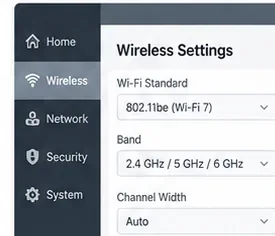
For a home Wi‑Fi 7 router, check these settings:
These recommendations come from Apple’s recommended settings for Wi‑Fi routers and access points. Back up your router configuration before changing multiple settings, and change one group of settings at a time so you can identify what actually improves stability.
A Wi‑Fi problem is not always a radio disconnect. Apple documents that VPN and third-party security software can interfere with network connectivity, including internet access and communication with local devices.
If the software is not required or managed by your employer or school, test without it. Apple’s current general Wi‑Fi guidance recommends uninstalling VPN or security software for the test, restarting the device, and checking connectivity again. If the software is required, contact the VPN administrator or security-software provider rather than permanently removing required protections.
Also search Settings for VPN, profile, firewall, or filter entries if you are unsure what network software is installed. Managed profiles should not be removed without authorization.
Starting with iOS 18, Apple provides three per-network Private Wi‑Fi Address modes: Off, Fixed, and Rotating. On networks using WPA2 or stronger security, the device normally chooses Fixed, which gives that network a stable private MAC address without exposing the hardware address across networks.
If your router relies on MAC filtering, reserved device lists, or a captive system that incorrectly expects the hardware MAC address, that configuration can create apparent connectivity problems. Apple’s preferred fix is to disable MAC-address filtering on the router and use modern WPA security—not to disable privacy on the iPhone by default.
If you are on a managed enterprise or school network that explicitly requires a particular address behavior, follow the administrator’s instructions. Apple explains the available modes in Use private Wi‑Fi addresses on Apple devices.
If the iPhone still disconnects after updating, restarting, rejoining, testing 6 GHz behavior, checking router settings, and ruling out VPN/security software, reset the iPhone’s network settings.
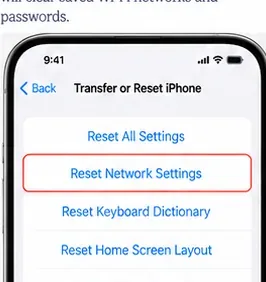
Go to Settings > General > Transfer or Reset iPhone > Reset > Reset Network Settings. Apple says this removes saved Wi‑Fi networks and passwords, cellular settings, and VPN/APN settings that are not installed by a configuration profile or mobile-device-management system.
Because this step has a wider impact than forgetting one network, Apple recommends using it only after other solutions fail. On a school or business-managed iPhone, consult IT before resetting network settings.
A stable result should survive normal use, not just a 30-second test. After each meaningful change, reconnect and use the same workload that previously triggered the problem.
If the iPhone 17 Pro disconnects from multiple unrelated Wi‑Fi networks after iOS is current and network settings have been reset, the problem is less likely to be one specific router. Apple’s Wi‑Fi troubleshooting page recommends contacting Apple when the device cannot connect reliably to any Wi‑Fi network.
If only one home network fails and other devices also lose internet access, contact the ISP or router manufacturer. If the iPhone is stable everywhere except one Wi‑Fi 7 router, the strongest evidence points toward that router’s firmware, configuration, or compatibility rather than an iPhone-wide radio failure.
For Apple’s complete sequence, see If you can’t connect to Wi‑Fi on your iPhone or iPad.
The most useful 2026-specific test is the new per-network ability to turn off Wi‑Fi 6E mode on a Wi‑Fi 7 connection. If that immediately stabilizes the iPhone 17 Pro, you have a much narrower problem to solve: the 6 GHz path or router configuration. If it changes nothing, the structured steps above help you move from iPhone software to router settings and finally to a full network reset without randomly disabling Wi‑Fi 7 features that Apple officially supports.
Fix iPhone 17 camera lag when switching lenses with verified iOS, Macro Control, Camera Control, storage, heat, and hardware checks.
Apple lists no Intel Macs for macOS 27. Learn how to identify your Mac, check the latest compatible release, and prepare apps and backups before upgrading.
Fix iPhone 17 game stutter and frame drops by checking Low Power Mode, Game Mode, heat, updates, storage, restarts, and last-resort settings.
Fix eSIM Transfer Failed on iPhone 17 Pro Max by checking Quick Transfer requirements, Wi-Fi and Bluetooth, iOS updates, carrier support, and QR-code fallback options.
Fix an iPhone 17 “Storage Almost Full” warning after an iOS update by checking real usage, allowing indexing to finish, freeing safe space, and updating iOS.
Fix repeated Wi‑Fi 7 disconnects on iPhone 17 Pro with Apple-supported steps for iOS, 6 GHz mode, router settings, VPNs, Private Wi‑Fi Address, and network reset.
Move contacts, photos, messages, apps, and WhatsApp chats from Android to iPhone 17 using the official Move to iOS method, with setup requirements and recovery tips.
Fix an iPhone 17 microphone that stops working on calls with Apple-verified tests for blocked mics, audio routing, permissions, iOS, and service.
Fix Apple Intelligence on iPhone 17 with verified Apple steps for iOS updates, model downloads, storage, language and region settings, Screen Time, Siri, and restart checks.
iPhone 17 battery draining fast after an iOS update? Diagnose post-update activity, apps, display, 5G, power modes, and battery health safely.